Tutorials - AI Photo Tagging Plugin for Lightroom


This AI Lightroom Plugin helps you create keywords and descriptions for your photos.
When you need to handle a large number of images that require keywords and descriptions, this plugin can save you a lot of time. Tagging is usually tedious, and it was the main reason I didn’t upload photos to agencies for nearly two years. I had nearly 200 finished photos on my hard drive, and finding good keywords for all of them before sending them to my agencies became a major blocker.
With this plugin, I could finish the task in less than 15 minutes, and I didn’t even have to do anything beyond giving the AI the initial instructions.
Modern LLMs (Large Language Models) can understand image content, and this plugin uses that feature. Google's latest Gemini AI or OpenAI's AI is very cheap for this task. Tagging 500 images will usually cost less than 1 Euro. If this is too much, you can use cheaper models via a service like OpenRouter. The results might be less detailed, but if you are dealing with a large number of images, it might be a great option for a first pass.
You could even configure the plugin to help you select the best images. Just describe what makes a great image, and let the AI add a certain keyword to those. The possibilities are endless.
For 9,50 Euro, you will receive a ZIP file with detailed installation and usage instructions, plus the plugin.
To use the plugin, create a Google Gemini API key, an OpenAI API key, or an OpenRouter API key. The readme provides detailed setup instructions, so don't worry about the process. Once you have an account with any of these services and have created your API key, buy credits. This gives you maximum control. Unlike subscriptions that charge you regularly, here you buy credits only when you need them.
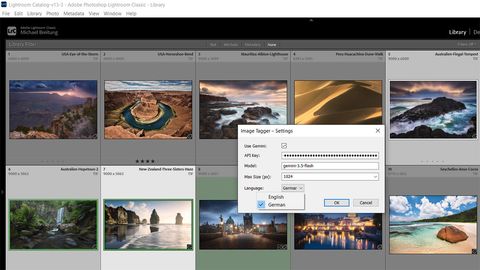
After following the usage instructions to install the plugin and set up an API key, you’re ready to use it.
First, revisit the provided system prompt. It contains the basic instructions for the AI and sets the tone for the description. You could tune the output by providing the AI with examples of your own writing, so it can match your tone if you want it to produce descriptions for your social media. If you want to create keywords and descriptions for photo agencies, I recommend keeping the system prompt as is.
As important as the system prompt is, you also need to set up keyword classifiers and categories. The plugin includes an initial configuration you can edit and extend. In the video, I show this process in detail and explain the difference between classifiers and categories.
With this initial setup complete, head into Lightroom, select a set of images, and open the plugin under Library - Plugin Extras - Tag Selected Photos with AI. Upon initial use, you must provide your API key and select the type of API you use - Gemini or OpenRouter / OpenAI. You can further set the size of the images sent to the AI, select between English and German, provide the model ID, and then start tagging.
Once finished, you can find the output in the images' metadata.
You need Adobe Lightroom Classic, a Google account for the Gemini API or an OpenRouter account, and a credit card for billing. Alternatively, you can run a local LLM with software like Ollama. For this, you need a fast machine with plenty of GPU memory.
This is a great plugin for photographers who regularly send images to stock photo agencies or want strong descriptions for their website or social media posts. If that sounds like you, get the plugin and customize the AI output to your needs. You can make it produce the professional descriptions you might need for agencies, or more creative descriptions for your social media posts. Because all data ends up in the image metadata, it’s portable to any other software that can read image metadata.
Once a month, I'll send a roundup of new tutorials, articles, and other news about photography. If that's interesting for you, make sure to subscribe to my newsletter.